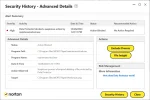
I downloaded the Windows version to my Windows 11 laptop. I virus scanned it for good measure and no initial problems were found. I installed the Windows player. The first time I started the app, it took a very, very, very long time to open up the main window to the app. Later invocations of the player app were quick to start. Because the application and its support application maintenancetool.exe are so "new", my Norton antivirus was very unhappy about the maintenancetool.exe running when I attempted to uninstall the VIOFO Player. I had to let the antivirus allow the maintenancetool.exe to run to complete the uninstall.
Installing the player again, I attempted to play video from a VIOFO A329. I found that if you only select the "Front" camera files, the player will only show the front camera video. If you select the front and rear camera files it will display the front and rear video content at the same time, but you end up with a list of files that will cause the player to play the front footage [rear is the second channel] and then when you click on the button to move to the next file, it shows the rear footage with the front as the second channel. If you're using it to display a dual channel configuration, you shouldn't have to populate the file list with both video files [front & rear] to have the multi-channel display work. Alternatively, the file navigation buttons should move to the next "front" video when you click on the next video button if it knows and is showing the rear as the second channel. It's not the most user friendly. There's also no automatic movement to the next video in the file listing. You must manually click on the prev/next button to move in either direction.
Initial screen with the first language in the list selected:
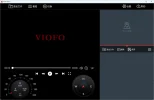
Default settings:
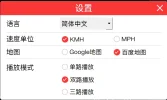
After selecting "English" for the language, MPH for the "Speed Unit" and "Google Map" as the map provider. Changing the map provider requires the app to be restarted.

If only "Front" video files are selected, the second [rear] channel is not displayed

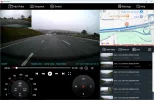
If "front" and "rear" video files are selected, the second [rear] video channel content is displayed. The prev/next buttons move through each video file listed making the other channel as the secondary channel for that "current" video file.
Front video is the "current" video file
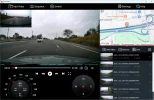
Rear video is the "current" video file


 dashcamviewer.com


