

rcg530
Well-Known Member
- Joined
- Jan 23, 2021
- Messages
- 2,717
- Reaction score
- 4,555
- Location
- California
- Country
- United States
- Dash Cam
- 70mai, BlackVue, Thinkware, Vantrue, Vueroid, VIOFO
Thinkware provided free of charge a Thinkware Connected LTE module that I've been testing with a U3000 Pro dash camera. I've been working with Thinkware on trying to clarify the feature specifications for their LTE module regarding the USIM card included with the LTE module. You must use the USIM card provided with the LTE module [you cannot use your own SIM card]. The thing that was a bit confusing to me was how much the data plan for the USIM card cost. At SEMA 2025, I was told there was no additional cost for the USIM data plan. After the SEMA show, it seemed the information relating to the "cost" aspect of the USIM card would change a bit depending on who I asked about it. After trying to clarify the answer to the cost of the USIM data plan, Thinkware has updated their "Thinkware Connected" website page stating "Data Included" [no additional data plan costs].
Having the USIM data plan cost included in the service plan can save the end user at least $120 USD [assuming a $10 USD per month data plan fee] per year since there is no additional cost for the USIM data plan.
Thinkware Connected - Website Page
Thinkwarestore.com - Thinkware Connected Page
Compatible Thinkware Dash Cameras

When the Thinkware Connected LTE module was first released, it was only compatible with the Thinkware U3000 Pro dash camera. Recently, the Thinkware ARC 900 dash camera was made compatible with the Thinkware Connected LTE module. If you want to use the Thinkware Connected service with the U3000 Pro and ARC 900 dash cameras, you must use the Thinkware Connected LTE module meaning that you cannot use a Wi-Fi based cloud/service connection for those dash camera models like you could in previous Thinkware dash camera models.
Thinkware Connected LTE Module - Configuration
The Thinkware Connected LTE module connects to the U3000 Pro / ARC 900 dash camera via a USB-C cable. The dash camera is the power source for the LTE module. You must use the Thinkware "Dash Cam Link" app [U3000 Pro / ARC 900] or the onscreen menu system [ARC 900] to define the manner in which the dash camera USB-C port is to be used.
Here's a screenshot of the ARC 900 setting:
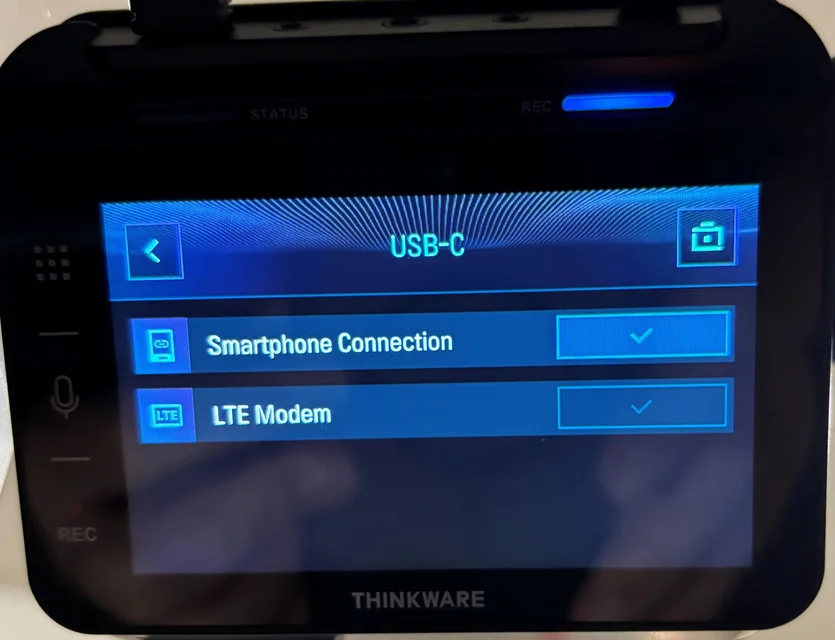
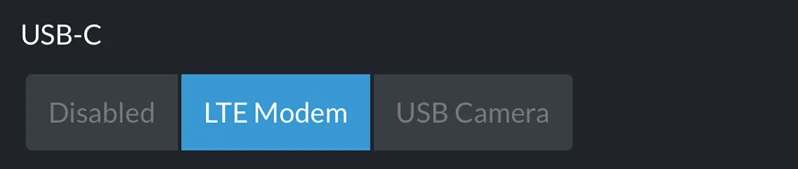
For the U3000 Pro, you must decide if you want to use the USB-C port for the LTE module or the optional USB interior camera. In the Dash Cam Link app, you must select "LTE Modem" to use the LTE module.
You use the Thinkware Connected app to register, monitor/see dash camera activities, and manage the dash cameras within your Thinkware Connected account.
Service Levels
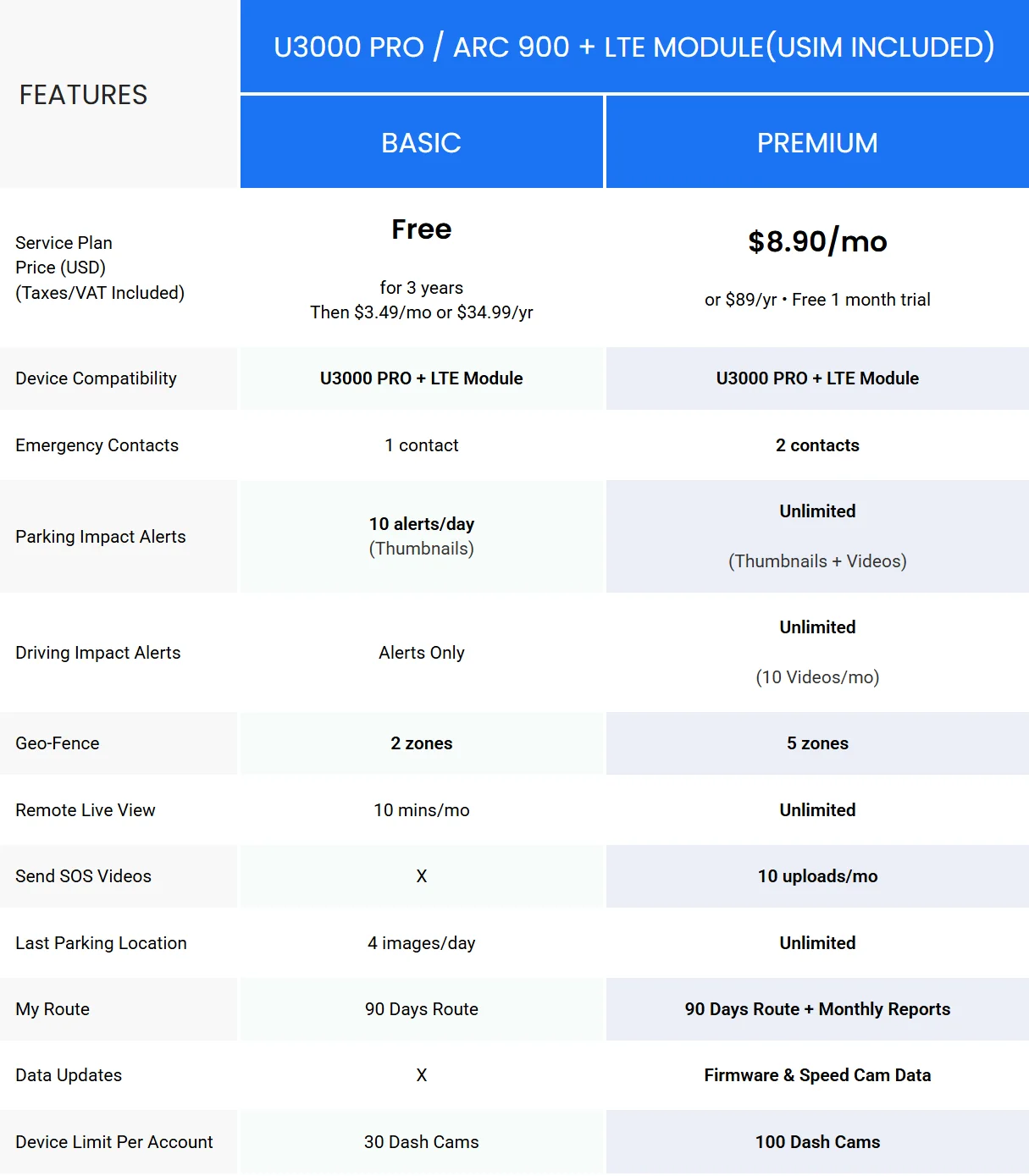
When you purchase the Thinkware Connected LTE module, it comes with 3-years of the "Basic" service plan included in the purchase price. When you first add your dash camera to the Thinkware Connected service [via the Thinkware Connected app], you begin your 3-year "free" service period. For the first month, the service level is bumped up to the "Premium" service level [for free]. After the first month, the plan automatically downgrades to the "Basic" plan for the remainder of the 3-year service plan period. If you feel the additional features/limits offered in the "Preimum" plan are needed for your dash camera(s), you can opt to purchase the "Premium" service plan at an additional cost.
If you keep the "Basic" plan for the entire 3-year period and you wish to continue to use the "Basic" service plan, you will need to start paying $3.49 USD per month at the start of the third year.
Here's a chart showing the service plan differences:
Thinkware Connected App
You manage the dash camera settings using the "Dash Cam Link" app. You manage and access the Thinkware Connected services via the "Thinkware Connected" app.
Home Screen:
The current status of the dash camera(s) in this account are listed on the home screen. It will show the current operational state of the dash camera, allow you to start a live view session, or remotely power off the dash camera.
In this example, my U3000 Pro dash camera is powered off since it is parked in my garage.

Notifications:
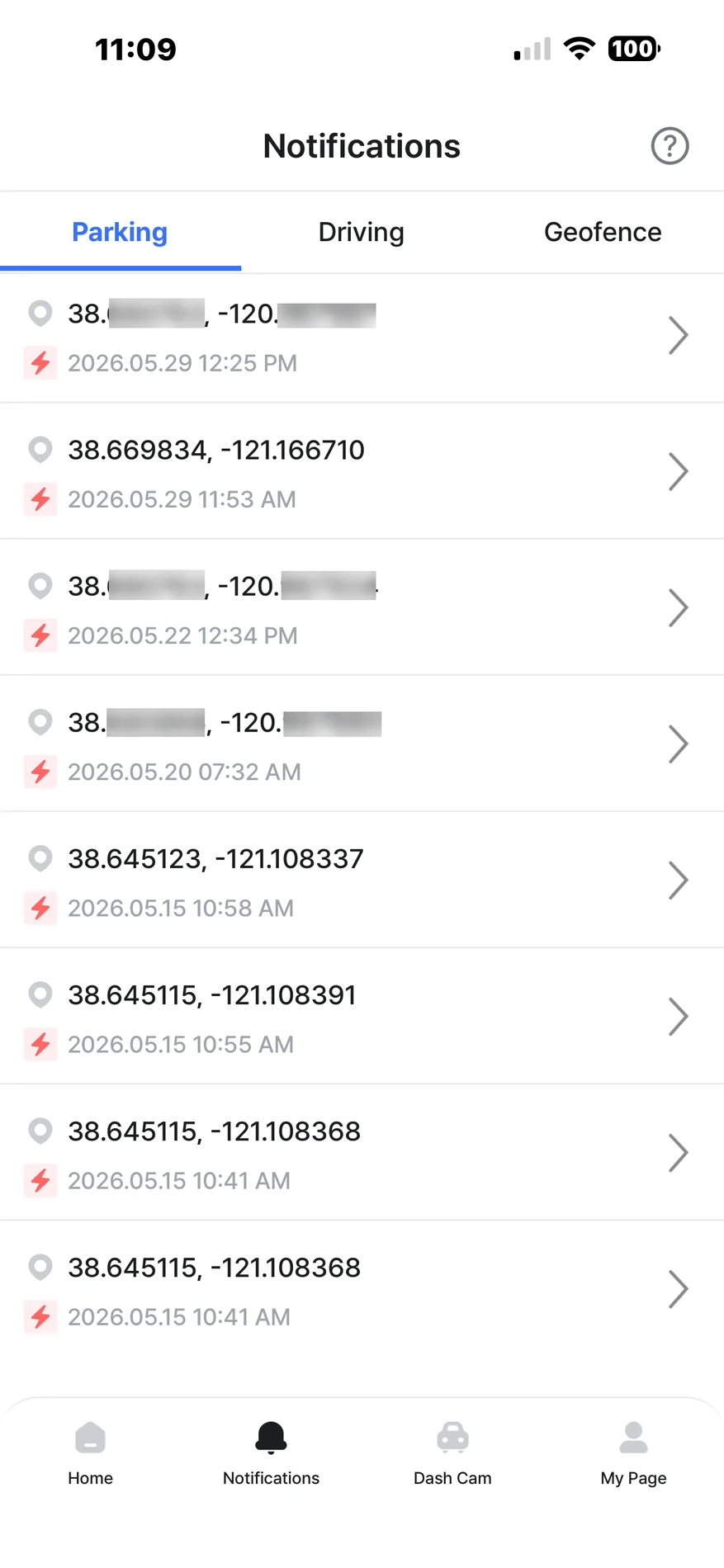
You can see a list of parking, driving, and geofence events that warranted notifications and/or recordings.
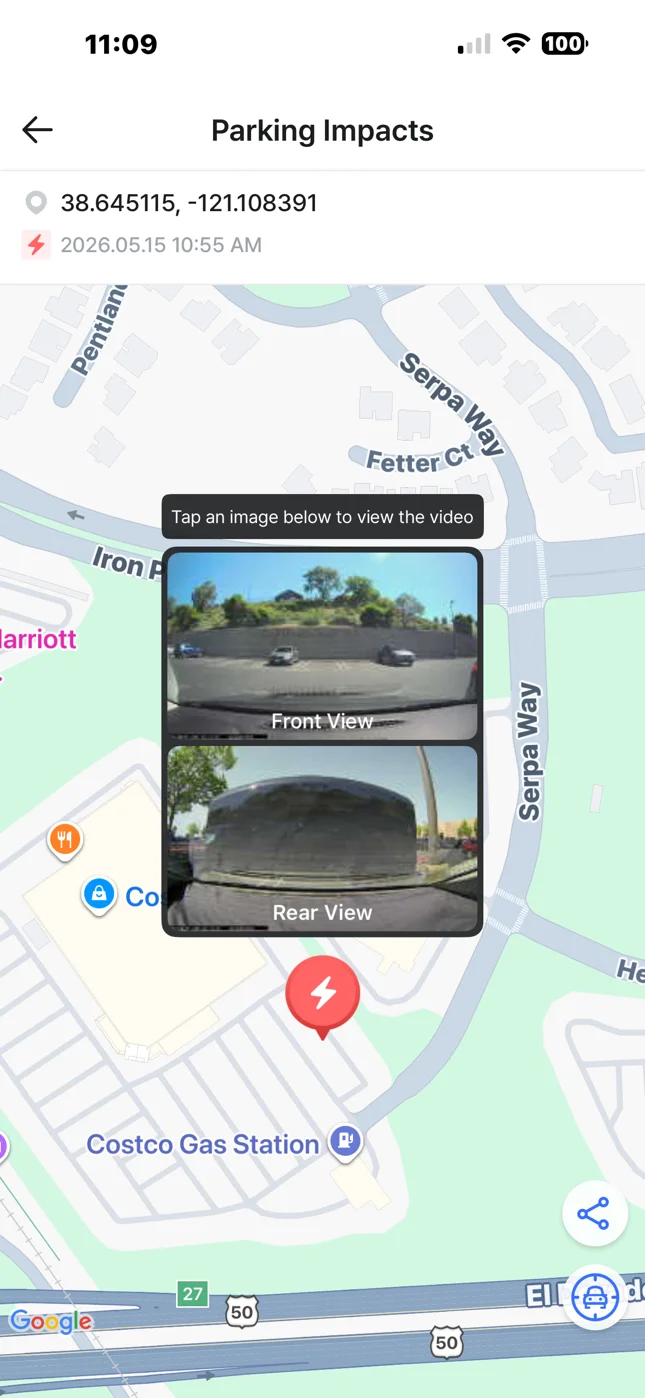
If you tap on a notification entry, you will be shown the information for that notification/event. In my example, this is a parking mode impact event at a nearby store. You are presented thumbnail images for the available cameras. If you tap on the thumbnail image, the app will attempt to access the dash camera over the LTE connection to gain access to the video on the memory card for this event. If the dash camera is powered off or in a low power state [radar/energy saving] parking mode, it will present a message to check the camera.
If the dash camera is setup for "Radar" parking mode or "Energy Saving" parking mode, there are times the dash camera is only monitoring for triggering events and it is in a low power consumption state. In those situations, the LTE module is not powered. When the dash camera does detect a qualifying motion [radar] or impact event [radar/energy saving], the dash camera powers up and creates the necessary parking mode recordings. The dash camera also powers up the LTE module to have a push notification sent for any detected impact events to your phone via Thinkware Connected app. It uploads thumbnails for each camera recording for that event.
There is a 10-minute time period when the dash camera first enters radar/energy saving parking mode and a 10-minute time period after it finishes recording impact event videos, that the dash camera remains "awake" which allows the dash camera to create buffered event videos and the LTE module is powered as well. If no qualifying impact events take place during that 10-minute time period, the dash camera will re-enter the low power consumption state of that parking mode [radar/energy saving] and the LTE module is powered down.
Having the USIM data plan cost included in the service plan can save the end user at least $120 USD [assuming a $10 USD per month data plan fee] per year since there is no additional cost for the USIM data plan.
Thinkware Connected - Website Page
Thinkwarestore.com - Thinkware Connected Page
Compatible Thinkware Dash Cameras
- Thinkware U3000 Pro
- Thinkware ARC 900
When the Thinkware Connected LTE module was first released, it was only compatible with the Thinkware U3000 Pro dash camera. Recently, the Thinkware ARC 900 dash camera was made compatible with the Thinkware Connected LTE module. If you want to use the Thinkware Connected service with the U3000 Pro and ARC 900 dash cameras, you must use the Thinkware Connected LTE module meaning that you cannot use a Wi-Fi based cloud/service connection for those dash camera models like you could in previous Thinkware dash camera models.
Thinkware Connected LTE Module - Configuration
The Thinkware Connected LTE module connects to the U3000 Pro / ARC 900 dash camera via a USB-C cable. The dash camera is the power source for the LTE module. You must use the Thinkware "Dash Cam Link" app [U3000 Pro / ARC 900] or the onscreen menu system [ARC 900] to define the manner in which the dash camera USB-C port is to be used.
Here's a screenshot of the ARC 900 setting:
For the U3000 Pro, you must decide if you want to use the USB-C port for the LTE module or the optional USB interior camera. In the Dash Cam Link app, you must select "LTE Modem" to use the LTE module.
You use the Thinkware Connected app to register, monitor/see dash camera activities, and manage the dash cameras within your Thinkware Connected account.
Service Levels
When you purchase the Thinkware Connected LTE module, it comes with 3-years of the "Basic" service plan included in the purchase price. When you first add your dash camera to the Thinkware Connected service [via the Thinkware Connected app], you begin your 3-year "free" service period. For the first month, the service level is bumped up to the "Premium" service level [for free]. After the first month, the plan automatically downgrades to the "Basic" plan for the remainder of the 3-year service plan period. If you feel the additional features/limits offered in the "Preimum" plan are needed for your dash camera(s), you can opt to purchase the "Premium" service plan at an additional cost.
If you keep the "Basic" plan for the entire 3-year period and you wish to continue to use the "Basic" service plan, you will need to start paying $3.49 USD per month at the start of the third year.
Here's a chart showing the service plan differences:
Thinkware Connected App
You manage the dash camera settings using the "Dash Cam Link" app. You manage and access the Thinkware Connected services via the "Thinkware Connected" app.
Home Screen:
The current status of the dash camera(s) in this account are listed on the home screen. It will show the current operational state of the dash camera, allow you to start a live view session, or remotely power off the dash camera.
In this example, my U3000 Pro dash camera is powered off since it is parked in my garage.
Notifications:
You can see a list of parking, driving, and geofence events that warranted notifications and/or recordings.
If you tap on a notification entry, you will be shown the information for that notification/event. In my example, this is a parking mode impact event at a nearby store. You are presented thumbnail images for the available cameras. If you tap on the thumbnail image, the app will attempt to access the dash camera over the LTE connection to gain access to the video on the memory card for this event. If the dash camera is powered off or in a low power state [radar/energy saving] parking mode, it will present a message to check the camera.
If the dash camera is setup for "Radar" parking mode or "Energy Saving" parking mode, there are times the dash camera is only monitoring for triggering events and it is in a low power consumption state. In those situations, the LTE module is not powered. When the dash camera does detect a qualifying motion [radar] or impact event [radar/energy saving], the dash camera powers up and creates the necessary parking mode recordings. The dash camera also powers up the LTE module to have a push notification sent for any detected impact events to your phone via Thinkware Connected app. It uploads thumbnails for each camera recording for that event.
There is a 10-minute time period when the dash camera first enters radar/energy saving parking mode and a 10-minute time period after it finishes recording impact event videos, that the dash camera remains "awake" which allows the dash camera to create buffered event videos and the LTE module is powered as well. If no qualifying impact events take place during that 10-minute time period, the dash camera will re-enter the low power consumption state of that parking mode [radar/energy saving] and the LTE module is powered down.