Please update the latest firmware to test, the issue you mentioned was optimized.I have discovered that this is the correct operation of the disable/enable parking mode using the bluetooth remote button, it defaults to low bitrate mode only and will ignore the setting I had configured on the camera.

You are using an out of date browser. It may not display this or other websites correctly.
You should upgrade or use an alternative browser.
You should upgrade or use an alternative browser.
VIOFO A119M Pro_FIRMWARE
- Thread starter Karagandinez
- Start date
SneekyB
Member
Ok thanks, I’ll have a look.Please update the latest firmware to test, the issue you mentioned was optimized.
SneekyB
Member
Hi. I can confirm this now works perfectly and retains the parking mode I had previously selected rather than defaulting to Low Bitrate mode when toggled off and then on again.Please update the latest firmware to test, the issue you mentioned was optimized.
yellowtape
New Member
I just updated to the latest firmware. The settings I previously configured on the dashcam were all reset. Is this normal, or should my previous settings have been saved? If this is normal, that’s really bad, I shouldnt have to set everything up every time I update the dashcam.
SneekyB
Member
It’s normal, the settings return to default with a new firmware update.I just updated to the latest firmware. The settings I previously configured on the dashcam were all reset. Is this normal, or should my previous settings have been saved? If this is normal, that’s really bad, I shouldnt have to set everything up every time I update the dashcam.
A backup/restore settings option would be great.

Chuck McCoy
Well-Known Member
- Joined
- Jun 9, 2022
- Messages
- 4,771
- Reaction score
- 4,739
- Location
- California
- Country
- United States
- Dash Cam
- 2026 Minimum Spec: STARVIS 2 & HDR & Low Power Parking Mode
Sometimes yes, sometimes no.I just updated to the latest firmware. The settings I previously configured on the dashcam were all reset. Is this normal, or should my previous settings have been saved?
Minor firmware updates settings will remain.
Major firmware updates require factory reset / default settings, (v1.0 to v1.1 etc).
Major firmware updates may contain new functions / features, (or even remove certain features).
Keeping “old” settings with new functions / features may cause the camera to not function as intended.
As a general rule of thumb always perform factory reset / default settings after firmware update, and re-enter fresh settings to ensure proper intended function.
This is most likely not possible due to above reasons.A backup/restore settings option would be great.
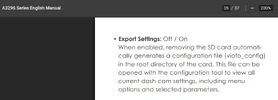
However, A329S has EXPORT SETTINGS;
When enabled, removing the SD card automatically generates a configuration file (viofo_config) in the root directory of the card.
This file can be opened with the configuration tool to view all current dash cam settings, including menu options and selected parameters.
Attachments

rcg530
Well-Known Member
- Joined
- Jan 23, 2021
- Messages
- 2,731
- Reaction score
- 4,578
- Location
- California
- Country
- United States
- Dash Cam
- 70mai, BlackVue, Thinkware, Vantrue, Vueroid, VIOFO
I've obtained more information from running additional tests with two different A119M Pro dash cameras regarding the failure to install a firmware update when using a memory card formatted with an exFAT file system.After encountering problems updating the firmware on two different A119M Pro to the v1.2_20260409 firmware [manual copy to memory card or via VIOFO Dashcam app], it wanted to see how the file system type selection for the memory card plays into the situation.
The TL;DR version: If the memory card is formatted with an "exFAT" file system [by a PC or the dash camera itself], firmware updates won't work.
The boot loader [the code in the dash camera that bootstraps the dash camera as it first powers up / before the firmware that controls the operations of the dash camera starts], mounts the memory card file system and looks for the firmware update file [FWA119MP.bin for this model]. The boot loader must successfully mount the file system and read the files from it. The A119M Pro boot loader does not seem capable of mounting exFAT file systems. It can only mount FAT32 file systems. The code in the main firmware that controls the operations of the dash camera is able to mount and use the exFAT file system.
If the memory card's file system is exFAT, the firmware update process will not work. It doesn't matter if you manually copy the FWA119MP.bin firmware file to the memory card using your computer or if you use the new over-the-air [OTA] method of sending the firmware to the dash camera using the newer VIOFO Dashcam app. The dash camera will quickly boot up without installing the firmware file. The firmware file gets deleted which confuses the situation a bit more. Check the firmware version in the dash camera and you'll see the firmware version is still the old/original version.
Depending on the memory card's total capacity, Windows 11 and the dash camera will create a FAT32 file system [32 GB and smaller] or an exFAT file system [64 GB or larger] when the memory card is formatted.
If it's possible, it looks like VIOFO needs to enhance the A119M Pro's boot loader code to support an exFAT file system memory card.
Until a solution is provided by VIOFO, if you want to update firmware for the A119M Pro dash camera, the memory card must have a FAT32 file system. You can use the VIOFO FAT32 formatting utility to create a FAT32 file system on larger memory cards. You could also use a 16 GB / 32 GB memory card formatted with a FAT32 file system. By default, a PC and the A119M Pro will create a FAT32 file system on 32 GB and smaller cards.
View attachment 91786
The unit I was having the "problem" with is an older unit [late prototype / early pre-release time frame]. My second unit was manufactured a couple of months later. The second unit's boot loader DOES support exFAT file system memory cards. The older unit's boot loader does not fully support exFAT file system memory cards.
The dash camera format error when a 32 GB memory card has a pre-existing exFAT file system, occurs with both units. I've captured that error in a video that I just sent to VIOFO. Windows will default to a FAT32 file system for 32 GB and smaller cards, but if the user selects an exFAT file system, it's possible to run into this situation. The dash camera can successfully write video files to the exFAT 32 GB card, but when it becomes necessary or the user wants to reformat the card, the dash camera will fail to format it ["Memory card format failed" message is heard]. Demonstration video: https://drive.google.com/file/d/1s-_xbKtZz9pu4696tVeLt5q-Iz-BnuKE/view?usp=sharing
yellowtape
New Member
Guys, I updated both the DC and mobile app to the latest versions, but I can’t find geofencing anywhere. Where did you guys find it? Is it under parking recording or somewhere else?
rcg530
Well-Known Member
- Joined
- Jan 23, 2021
- Messages
- 2,731
- Reaction score
- 4,578
- Location
- California
- Country
- United States
- Dash Cam
- 70mai, BlackVue, Thinkware, Vantrue, Vueroid, VIOFO
Make sure you are using the "VIOFO Dashcam" app, not the older "VIOFO" app. Orginally, VIOFO released the newer "VIOFO Dashcam" app as a beta app which required it to have a separate app name from the original VIOFO app.Guys, I updated both the DC and mobile app to the latest versions, but I can’t find geofencing anywhere. Where did you guys find it? Is it under parking recording or somewhere else?
In the "Parking Recording" top level section, there will be a "Geofencing" sub-section which will contain three entries "Zone 1", "Zone 2", and "Zone 3". You can configure as many of those three entries with locations you want to have the dash camera turn off rather than go into parking mode.
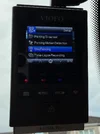
If you use the on-camera settings screens, you will find "GeoFencing" on screen page 3 of 12 if you have firmware v1.2_20260409 installed. When you click on that entry, you'll see the same zone entries you would see in the newer "VIOFO Dashcam" app.
Chuck McCoy
Well-Known Member
- Joined
- Jun 9, 2022
- Messages
- 4,771
- Reaction score
- 4,739
- Location
- California
- Country
- United States
- Dash Cam
- 2026 Minimum Spec: STARVIS 2 & HDR & Low Power Parking Mode
It’s behind the ketchupI can’t find geofencing anywhere. Where did you guys find it?
yellowtape
New Member
there is actually nothing in the dashcam app settings
this is a video showing full settings list in my phone, my app and dashcam firmware is up to date
SneekyB
Member
Oddly I cannot see the geofencing option in my app now, I’m sure the option was there. They are however available directly on the camera.there is actually nothing in the dashcam app settings
this is a video showing full settings list in my phone, my app and dashcam firmware is up to date

The new version of the app will be released this week if no delay.Oddly I cannot see the geofencing option in my app now, I’m sure the option was there. They are however available directly on the camera.
View attachment 91900
View attachment 91902