VUEROID S1-4K Infinite_FIRMWARE

Blog post on your website would be good place to post firmware updates.
 

S1 4K Firmware v.1.3.11​

    • Updated menu icons (Up/Down → Back / Up & Down)
    • Revised Stamp settings menu (Brand model, firmware version, date & time, channel, voltage, video GPS speed, GPS coordinates, enhancement, frame rate, watermark, color — 4 options)
    • Added DC Off function via long press of the OK button during parking mode transition
    • Added Time Zone support
    • Added GPS disconnected icon
    • Improved VOD playback speed when using 2.4G Wi-Fi
    • Enhanced video image quality (Linear, HDR + IPC)
    • Enabled interior camera motion detection
    • Enhanced GPS zone setting accuracy and advanced Hub UI
    • Improved overall system stability
    [*]
 
How do you guys update firmware from PC or Mac? Manual says "drop the file into a root folder of SD Card" - what file? Entire zip archive? An unzipped folder? Specific file? Anyways, nothing works, camera just boot up and starting to record. No "automatic update" happens.
Updating from mobile app is also not an option for me, because the phone has to be connected to the camera WiFi, but then it uses cellular data to download the firmware, which takes much longer in my case (I have a bad service inside my house) and seems to be enough to cause a disconnection from dash cam (apparently by timeout) and the process start over.
How did you folks update yours?

 
How do you guys update firmware from PC or Mac? Manual says "drop the file into a root folder of SD Card" - what file? Entire zip archive? An unzipped folder? Specific file? Anyways, nothing works, camera just boot up and starting to record. No "automatic update" happens.
Updating from mobile app is also not an option for me, because the phone has to be connected to the camera WiFi, but then it uses cellular data to download the firmware, which takes much longer in my case (I have a bad service inside my house) and seems to be enough to cause a disconnection from dash cam (apparently by timeout) and the process start over.
How did you folks update yours?

Yes, download the file to your PC or Mac, place the unzipped .dat file in the root directory of your MicroSDXC disk. Place the MicroSDXC card into the S1 4K and power on the S1 4K. The update will start automatically.

If you are using a Mac, be sure to select Erase Disk and then select MS-DOS (FAT) if you are using a new SDXC card. You can also format the card in the S1 4K.

S1 4K FW download link

If you still have trouble getting the file, DM me and I will send it to you in an email or put it on my Google Drive.
 
Last edited:
How do you guys update firmware from PC or Mac? Manual says "drop the file into a root folder of SD Card" - what file? Entire zip archive? An unzipped folder? Specific file? Anyways, nothing works, camera just boot up and starting to record. No "automatic update" happens.
Updating from mobile app is also not an option for me, because the phone has to be connected to the camera WiFi, but then it uses cellular data to download the firmware, which takes much longer in my case (I have a bad service inside my house) and seems to be enough to cause a disconnection from dash cam (apparently by timeout) and the process start over.
How did you folks update yours?
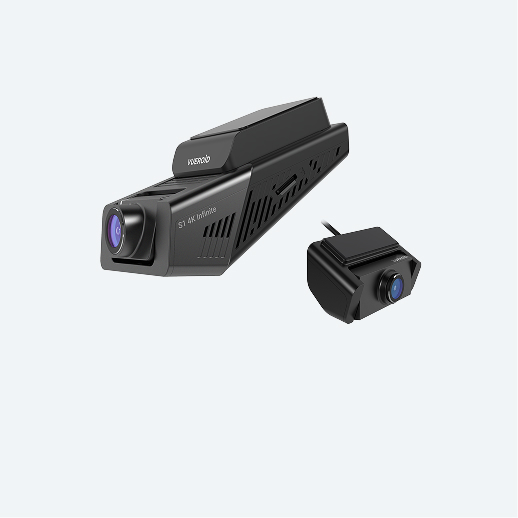
It appears that there is something wrong with the update file.
You would normally have a .dat file that is the firnware update.

Make sure to drop the .dat file on the SD card. It is important to note that a cheap and slow SD card will not work for the update. It needs to be a fast card. (Don't ask how I know 🤣)
 
Thanks. How the process of update does manifest itself? And how long should it take? My dash camera started to blink with all 3 LED Pink, Red, Pink. Is it filesystem error or update in progress?
 
Hmmm...as Julian123 mentioned, there may be an issue with the download file. It has failed for me as well. If you are seeing the 3 flasing LED, then within a minute or so you should see a notice about the update being in progress.
 
It appears that there is something wrong with the update file.
You would normally have a .dat file that is the firnware update.

Make sure to drop the .dat file on the SD card. It is important to note that a cheap and slow SD card will not work for the update. It needs to be a fast card. (Don't ask how I know 🤣)
Hm. So, once again:
1. Format SD Card with Fat32 (not exFat on MacOS?)
2. Drop S1-4K_firmware_v1.311.dat file into a root directory of SD card.
3. Does partition name makes any difference? Should it be a specific name or any name (like Untitled)?
4. Turn on the dash cam with SD card inserted, the process should begin. Does it manifests itself anyhow?

Thank you in advance.
 
If you are seeing the 3 flasing LED, then within a minute or so
Hm... in my case it is blinking more than 10 mins already, I am hesitating to interrupt it, because I'm afraid to brick it.
What color code is? All white? Anything particular? In my case it Pink, Red, Pink, all 3 LED blinking simultaneously. I think something is incorrect.
 
Hm. So, once again:
1. Format SD Card with Fat32 (not exFat on MacOS?)
2. Drop S1-4K_firmware_v1.311.dat file into a root directory of SD card.
3. Does partition name makes any difference? Should it be a specific name or any name (like Untitled)?
4. Turn on the dash cam with SD card inserted, the process should begin. Does it manifests itself anyhow?

Thank you in advance.
I just used a 256GB microSD card to do the update.
The SD card is exFAT format.

2. Yes, exactly.
3. No, doesn't matter.
4. Yes, it will show the blue boot screen for a bit and then show a screen that the firmware is updating.
 
I have the same issue. There is something amiss here. Power down your cam and remove the SDXC, delete the update file, and put the SDXC back into your cam and power up to ensure you still have the original FW loaded.
 
Hm... in my case it is blinking more than 10 mins already, I am hesitating to interrupt it, because I'm afraid to brick it.
What color code is? All white? Anything particular? In my case it Pink, Red, Pink, all 3 LED blinking simultaneously. I think something is incorrect.
I had the same issues when the camera wouldn't accept my too slow SD card when I tried to update in the past.
I simply unplugged it, changed to a better SD card and it worked.

Pink is correct. It took less than 30s from booting up to the update to start.
 
OK, finally.
1. Format SD Card with MS-FAT (not exFat on MacOS).
2. Drop S1-4K_firmware_v1.311.dat file into a root directory of SD card.
3. Still don't know if partition naming matters, but I called it S1-4K just in case.
4. Turn on the dash cam with SD card inserted, the process should begin. Voice notification will explicitly say that firmware upgrade in process.
 
Back
Top